Inspection reports
Under Inspection reports, you can find the inspection reports stored in Memida. Each inspection report belongs to an individual item of inspection equipment and documents details including the type, use decision, inspection date, and associated files.
You can enter inspection reports manually, import existing calibration certificates, or create your own calibration certificates from measured values:
| Your task | Relevant procedure |
|---|---|
| Document an inspection with your own details and attachments | Add an inspection report manually |
| Add an existing PDF or DCC calibration certificate | Import calibration certificates |
| Record measured values and create your own digital calibration certificate | Create calibration certificates |
| Seal a prepared calibration certificate and complete it as an inspection report | Seal and complete calibration certificates |
The import under Inspection reports imports documents and their inspection data. To create inspection equipment or update your equipment inventory from a spreadsheet, use the inspection equipment import.
View details for an inspection report
Click the date in the left column to view the report details, or click the three vertical dots at the end of the row and select View.
View digital calibration certificates
A DCC created and completed in Memida is stored as an XML file with an associated PDF view. Select View PDF on the XML file to open the representation. Download the digital calibration certificate itself as an XML file.
Completed DCC inspection reports are immutable. This applies both to DCCs created in Memida and to confirmed DCC imports. You cannot subsequently edit or delete these reports or their protected associated files. This rule also applies to the REST API. Check the details before creating the report or completing the certificate.
For imported calibration certificates, the uploaded source file is retained. It cannot be deleted individually. For more information on handling imported files, see the import guide.
Add an inspection report
To add a report, first select the inspection equipment in the equipment list and open its detail page. Then click the plus icon next to Inspection report on the right side.
An inspection equipment group does not have its own inspection reports. Inspections and evidence are documented for the individual physical items of inspection equipment.
The dialog for adding an inspection report opens.
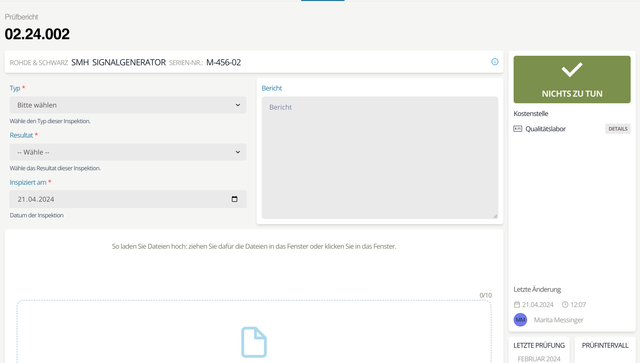
Fig. 1: Add an inspection report
Choose the report type
Select the report type from the list.
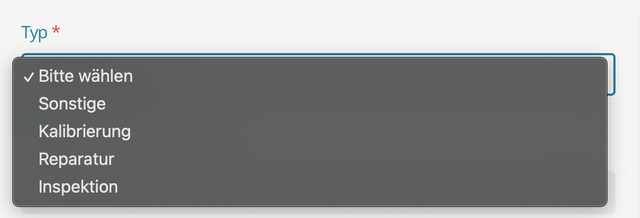
Fig. 2: Choose the report type
Choose the use decision
Under Use decision, select whether the inspection equipment can be used and which restrictions apply. Consider the inspection results and intended use. A statement of conformity in the attached calibration certificate remains separate from this decision.
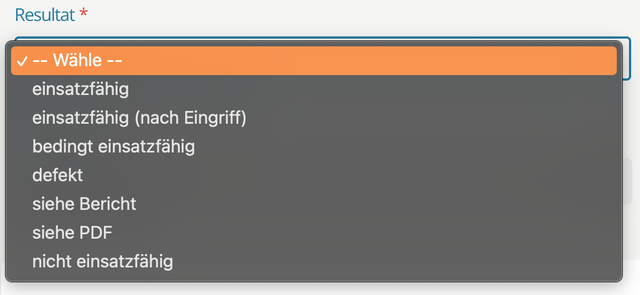
Fig. 3: Choose the use decision for the inspection report
Report date
Enter the date on which the report was created.
Report
Use the Report field to record additional information about the inspection report.
Add files to the report
Upload supporting files at the bottom of the dialog. In this procedure, you enter the inspection data yourself. To extract details from an existing calibration certificate, use the calibration certificate import.
You can upload several files at a time. Drag them onto the upload field, or click the field to select the files using the operating system’s standard dialog.
The maximum file size is 32 MB per file.

Fig. 4: Add files to the inspection report